Your First 10 Minutes
This tutorial walks you through the core workflow: authenticate, register a service, track an event, and create a Stage session. By the end, you will have used four platform services together.
Prerequisites
- The platform is running locally (
bun run dev) or you have the CLI installed and pointed at a gateway - If auth is enabled, you have Google OAuth credentials configured (see Authentication)
Step 1: Authenticate
If you are running locally without auth configured, skip this step -- all routes are public.
shift-cli login
This opens your browser for Google OAuth. After granting access, you will see:
Logged in as alice@the-shift.dev
Token saved to ~/.shift/auth.json
Confirm your identity:
shift-cli whoami
alice@the-shift.dev
With --json:
shift-cli whoami --json
{
  "email": "alice@the-shift.dev",
  "name": "Alice",
  "picture": "https://lh3.googleusercontent.com/..."
}
Step 2: Register a Service in Yellow Pages
Yellow Pages is the service catalog. Let's register an API service:
shift-cli yp service add \
  --name "my-todo-api" \
  --description "A simple todo list API"
Service added: my-todo-api (aB3kQ9x1)
With --json:
shift-cli yp service add \
  --name "my-todo-api" \
  --description "A simple todo list API" \
  --json
{
  "success": true,
  "data": {
    "id": "aB3kQ9x1",
    "name": "my-todo-api",
    "description": "A simple todo list API",
    "createdAt": "2026-03-05T10:00:00.000Z"
  }
}
Verify it is in the catalog:
shift-cli yp service list
ID        Name          Description
aB3kQ9x1  my-todo-api   A simple todo list API
Step 3: Track an Event with Pulse
Pulse records usage telemetry. Let's track an event against the service we just registered:
shift-cli pulse track api_call \
  --service my-todo-api \
  --user alice \
  --meta endpoint=/todos --meta method=GET \
  --source cli
Event tracked: api_call (service: my-todo-api)
The --service flag accepts either an ID (aB3kQ9x1) or a name (my-todo-api) -- all commands support ID-or-name resolution.
Track a few more events:
shift-cli pulse track page_view \
  --service my-todo-api \
  --user alice \
  --meta path=/home \
  --source web

shift-cli pulse track feature_used \
  --service my-todo-api \
  --user alice \
  --meta feature=dark-mode \
  --source web
Check the status:
shift-cli pulse status
Step 4: Create a Stage Session
Stage is a sandboxed React runtime. Let's create a session and deploy a simple component:
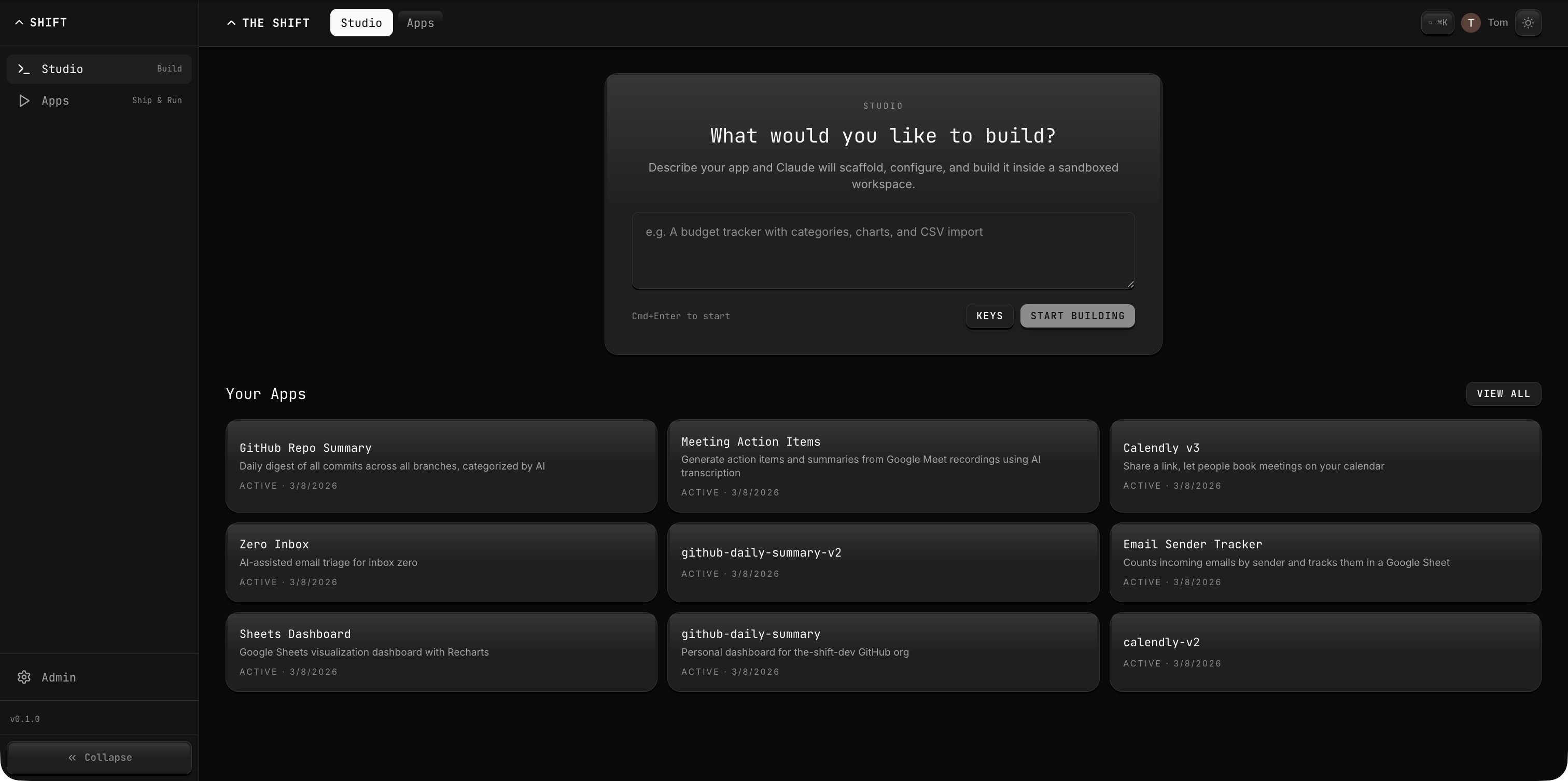
shift-cli stage new --name "my-todo-app" --description "Todo list preview"
Session created: s_7kM2pQ4x
URL: https://app.the-shift.dev/stage/s_7kM2pQ4x
Write a React component to the session:
shift-cli stage write /app/App.tsx --session s_7kM2pQ4x <<'EOF'
export default function App() {
  return (
    <div style={{ padding: "2rem", fontFamily: "system-ui" }}>
      <h1>My Todo App</h1>
      <p>Deployed via The Shift Platform</p>
    </div>
  );
}
EOF
Trigger a render:
shift-cli stage render --session s_7kM2pQ4x
Render triggered for session s_7kM2pQ4x
Entry point: /app/App.tsx
Open the session URL in your browser to see the live preview.
Step 5: Check Platform Status
Get an overview of the gateway and all connected services:
shift-cli status
Gateway: https://app.the-shift.dev
Status:  ok
Version: 0.1.0
Recap
In this tutorial you:
- Authenticated with
shift-cli loginvia Google OAuth - Registered a service in Yellow Pages with
shift-cli yp service add - Tracked usage events with
shift-cli pulse track - Created a live preview with
shift-cli stage new,stage write, andstage render
Each command supports --json for machine-readable output (ideal for AI agents) and --quiet for exit-code-only mode (ideal for scripts).
Next Steps
- CLI Reference -- Full command reference for all services
- Architecture Overview -- How the gateway and storage backends work
- Build a Calendar App -- End-to-end guide using Stage and Pulse
- Agent Integration -- How AI agents consume the platform